Catalogs
Our Catalogs feature allows you to link a product list or feed to your campaigns.
With this setup, you can assign different commission rates to each product and create payouts based on the catalog. This means affiliates can earn varying commissions depending on which products their referred clients purchase.
You can also choose to share the product list with your affiliates.
Affiliates will be able to download the list of products. When a product URL is specified, the list will contain the affiliate's unique tracking link that will redirect potential customers directly to the corresponding product page.
Product feeds can be added in two ways:
- Manually upload a CSV file containing the product list details and commissions
- Add a link to a live updating XML or JSON product feed
If your live product feed doesn't include the affiliate commission values, you will need to input them manually for each product.
Uploading a CSV Catalog
Navigate to Campaigns → Locate the relevant campaign → click the three-dot icon under the Actions column → Edit → Catalogs → Add New → Fill out the catalog details → Save
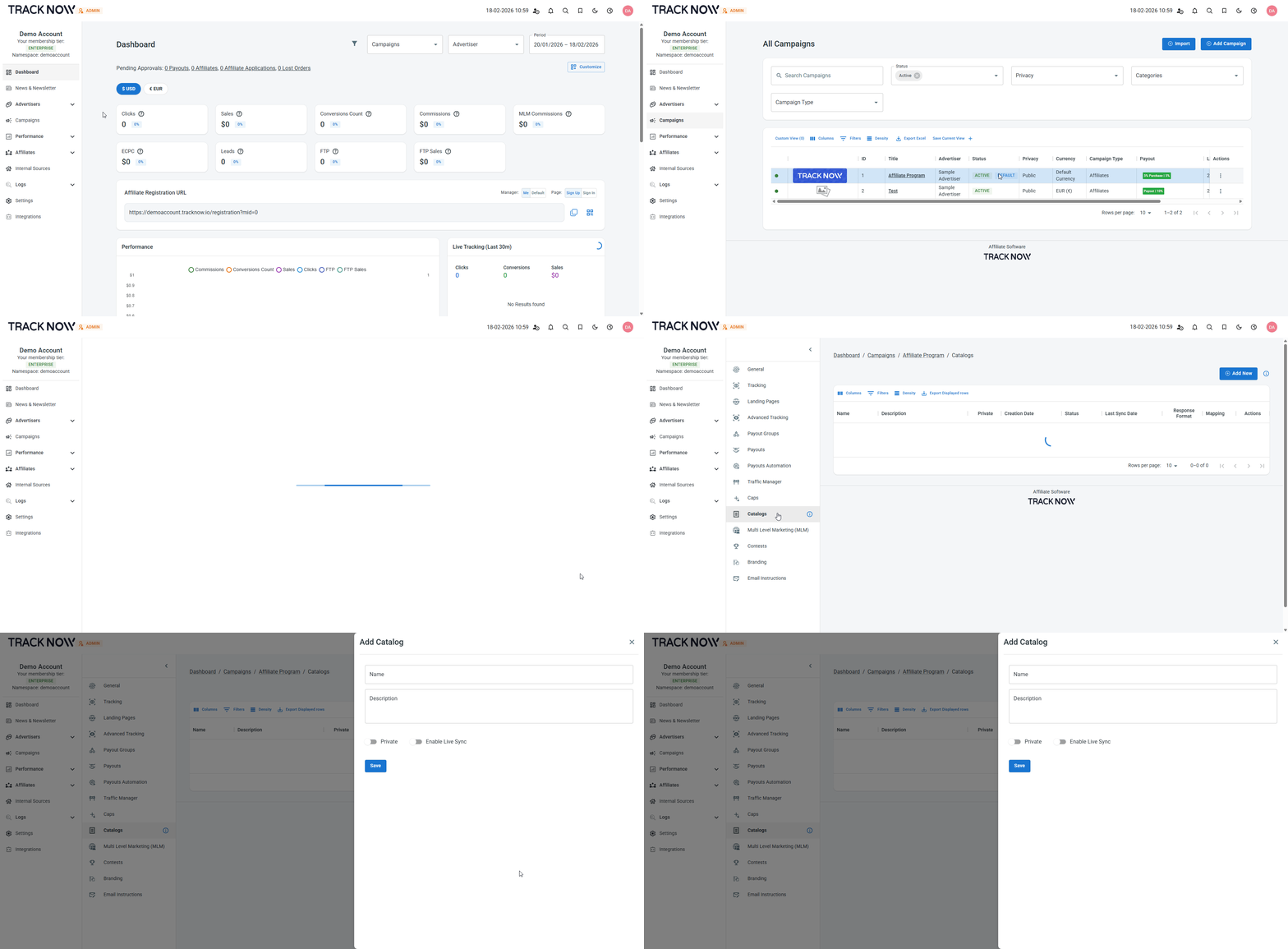
| Field | Description |
|---|---|
| Name | Specify a name for your catalog |
| Description | Provide a description for the catalog |
| Private | Toggle off to make this catalog available to all affiliates. Toggle on to restrict access and select the specific affiliates who can view this catalog |
| Enable Live Sync | Toggle off to upload a CSV catalog |
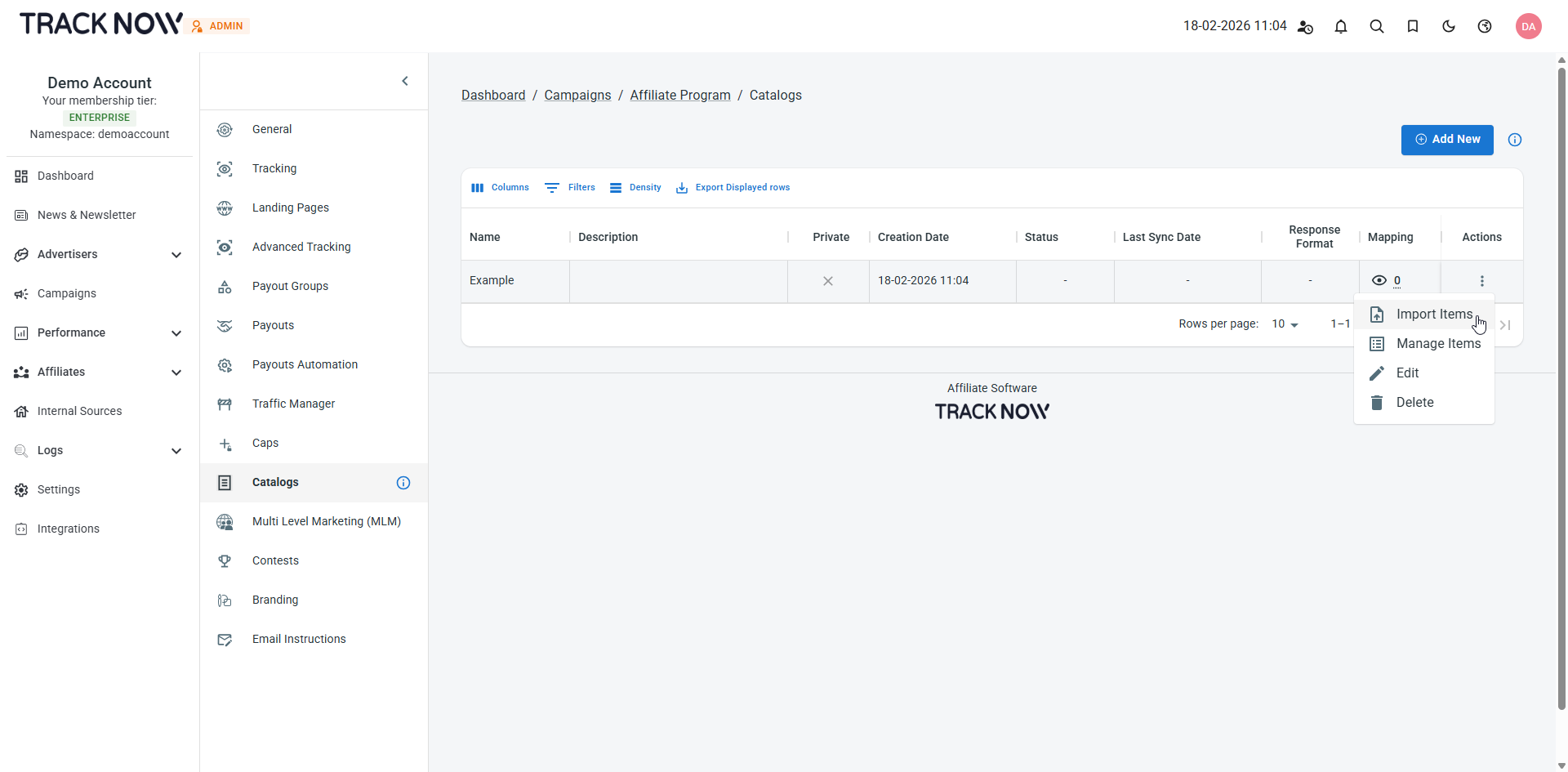
Once the catalog is created, click the three dot icon under the Actions column next to the catalog and click Import Items
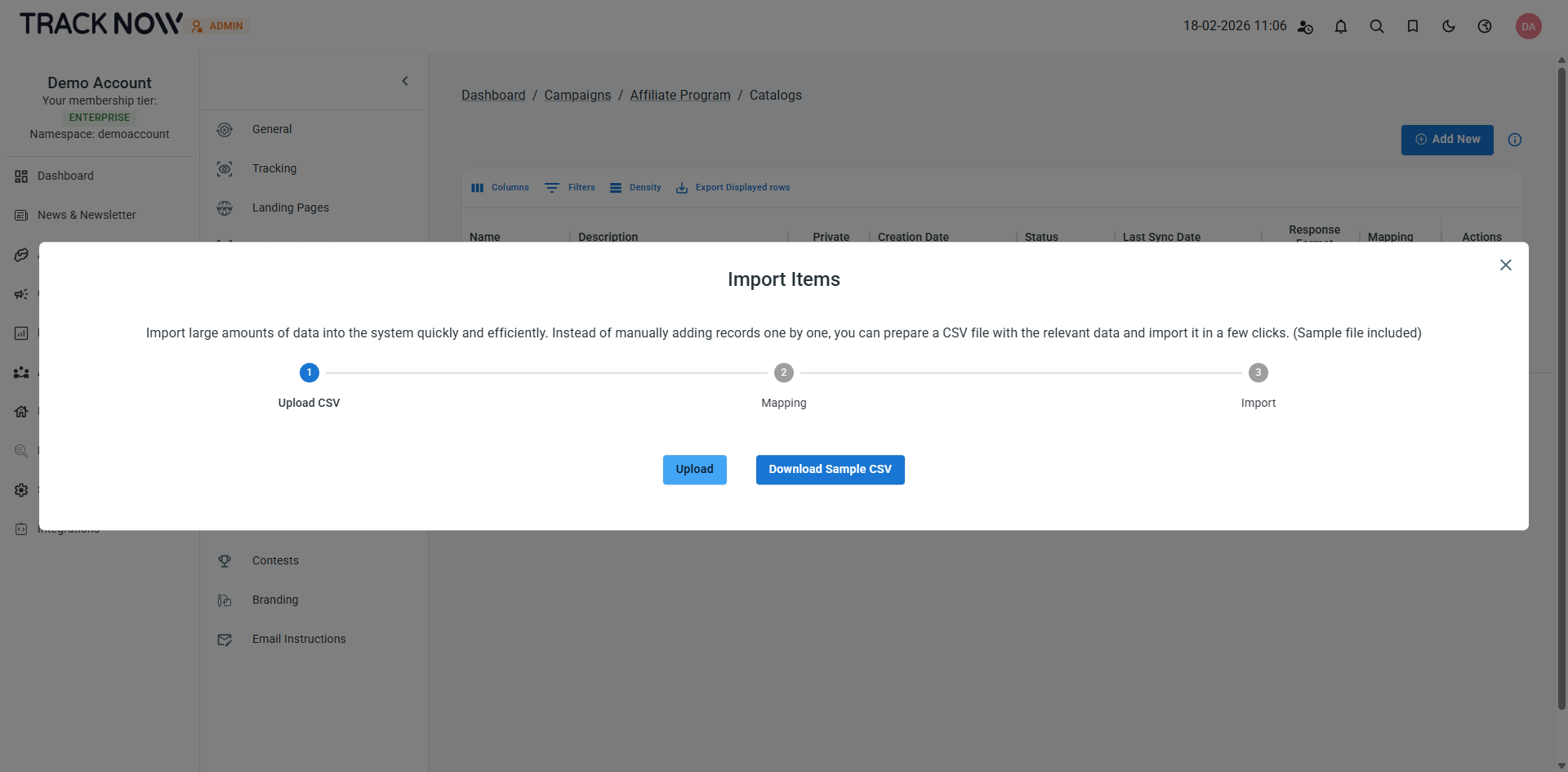
Download the sample file to review the required format, then upload your completed CSV file accordingly
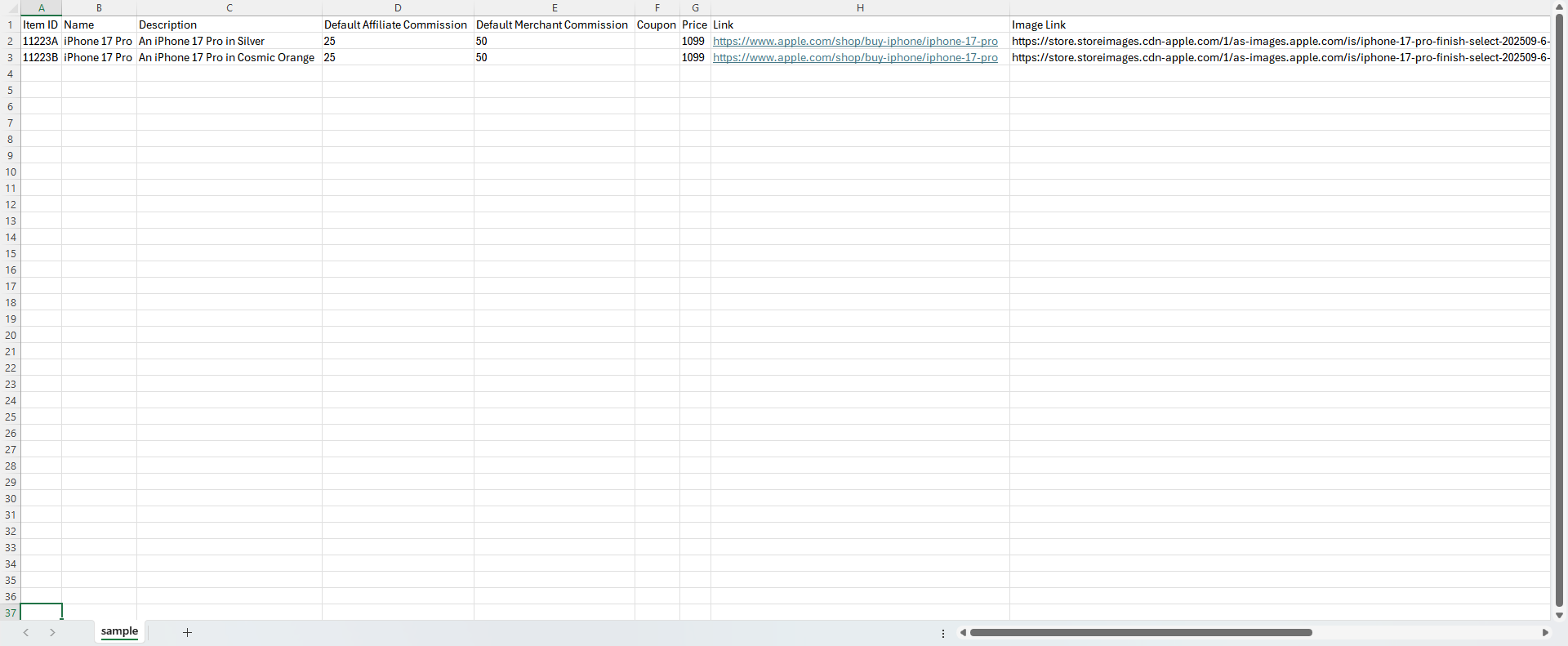
| Field | Type | Description |
|---|---|---|
| Item ID (Required) | String | The ID of item in the store (SKU) |
| Name (Required) | String | The name of the item |
| Description (Optional) | String | A description of the item |
| Default Affiliate Commission (Required) | Integer | Affiliate commission (percentage): Enter the commission as a percentage of the item price. For example, type 25 if the commission is twenty-five percent. (Do not include the % symbol) |
| Default Merchant Commission (Optional) | Integer | Merchant commission (percentage): Enter the commission as a percentage of the item price. For example, type 50 if the commission is fifty percent. (Do not include the % symbol) |
| Coupon (Optional) | String | A coupon code relevant to this item (Informative only, does not trigger any commission logic) |
| Price (Required) | Integer | Item price: Enter only the numeric value of the item price, without the currency. For example, if the price is 1099 USD, enter 1099. If your campaign uses a different currency, convert the amount first and then enter the converted number only. |
| Link (Optional) | String | A URL to the product/product page. |
| Image Link (Optional) | String | A URL to the product image. |
Uploading a Live Catalog Feed
Navigate to Campaigns → Locate the relevant campaign → click the three-dot icon under the Actions column → Edit → Catalogs → Add New → Fill out the catalog details → Save
| Field | Description |
|---|---|
| Name | Specify a name for your catalog |
| Description | Provide a description for the catalog |
| Private | Toggle off to make this catalog available to all affiliates. Toggle on to restrict access and select the specific affiliates who can view this catalog |
| Enable Live Sync | Toggle on to upload a live catalog |
Once Live Sync is enabled, specify:
- Sync Period
- Feed URL (if your endpoint requires any headers you can add them as well)
- Input the tag/field name representing items in the JSON/XML file
- Select the type of file (JSON/XML)
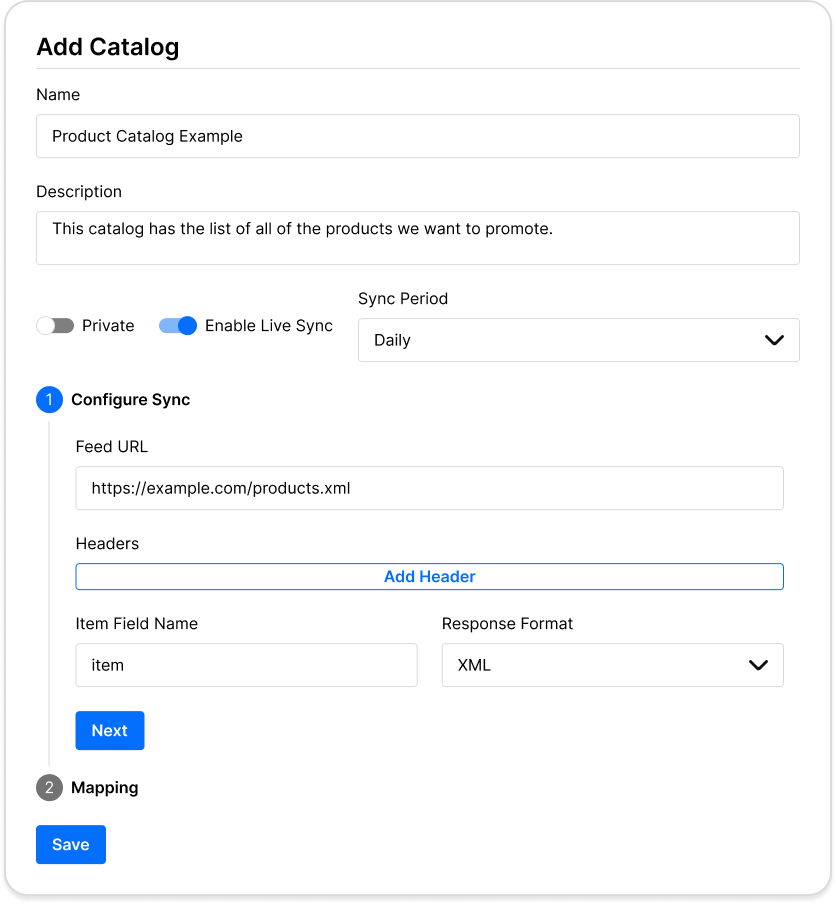
Click Next to proceed to the mapping step.
Our system will parse the product feed and try to map the various properties each product has. Use the mapping feature to associate the relevant properties with the corresponding fields.
You can then preview the data and save the mapping.
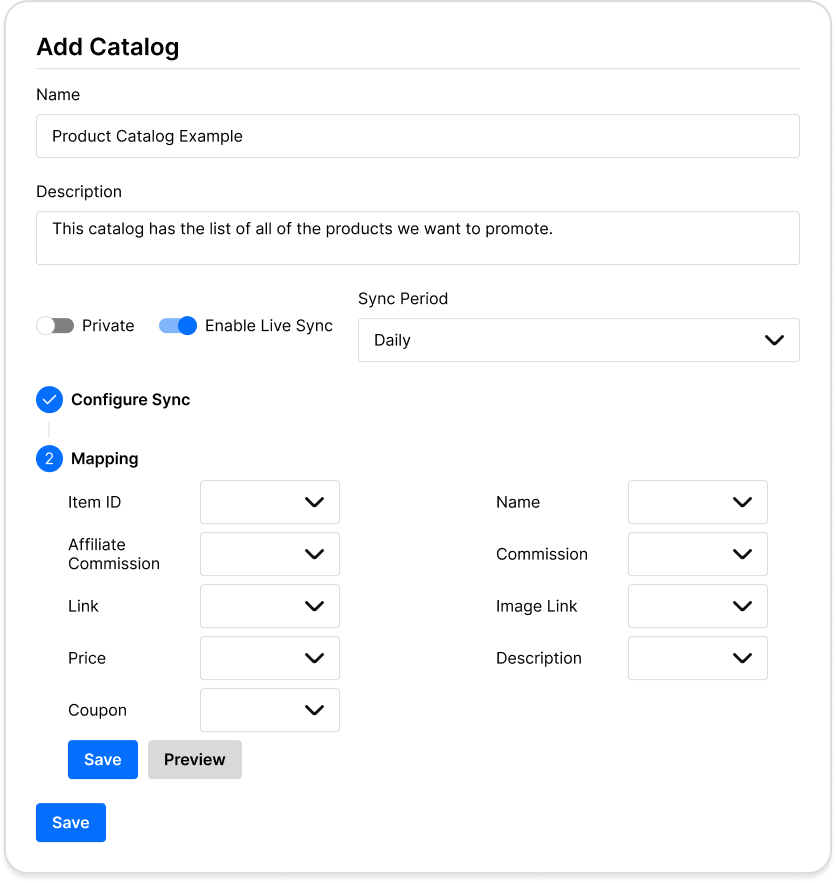
Click Save to create the catalog