Coupons
When you create coupon codes for your affiliates in your store, you can add those coupons to Tracknow and associate each one with the corresponding affiliate. The assigned coupons will be displayed in the affiliate's portal and used for commission attribution.
When a purchase event is sent from your store to Tracknow, our system can use the coupon code included in the event data to identify the affiliate responsible for the sale and attribute the commission accordingly.
This allows affiliates to earn commissions from coupon-based referrals even when the customer did not click an affiliate tracking link before making the purchase.
Coupon Types (Coupon Payout vs Coupon Code)
Tracknow supports two ways of associating coupon codes with affiliates:
| Feature | Coupon Payout | Coupon Code |
|---|---|---|
| Purpose | Apply a custom commission rate for coupon-driven sales | Attribute sales to affiliates using existing commission rules |
| Commission Rate | Custom rate defined on the coupon payout | Uses the commission rate from the existing payout |
| Overrides Default Commission | Yes | No |
| Attribution Method | Coupon code | Coupon code |
| Typical Use Case | Coupon sales should pay a different commission than link referrals | Coupon sales should pay the same commission as link referrals |
Use a Coupon Payout When...
You want purchases made with a coupon code to generate a different commission than the default commission configured for the event.
Example
Your affiliate program pays affiliates 15% of the purchase amount by default. However, you want purchases made using affiliate coupon codes to generate 10% commission.
In this case, create the coupon as a Coupon Payout and configure its commission rate to 10%. When a purchase event containing that coupon code is received, Tracknow will trigger the coupon payout and award the affiliate 10% commission instead of the default 15%.
Use a Coupon Code When...
You want purchases made with a coupon code to generate the same commission that would be awarded through a standard affiliate referral link.
Example
Your affiliate program pays affiliates 15% of the purchase amount regardless of whether the sale is attributed through an affiliate link or an affiliate coupon code.
In this case, add the coupon as a Coupon Code. When a purchase event containing the coupon code is received, Tracknow will attribute the sale to the associated affiliate and trigger the existing 15% Sale payout, resulting in the same commission that would have been awarded through a standard affiliate link referral.
Creating a Coupon Payout
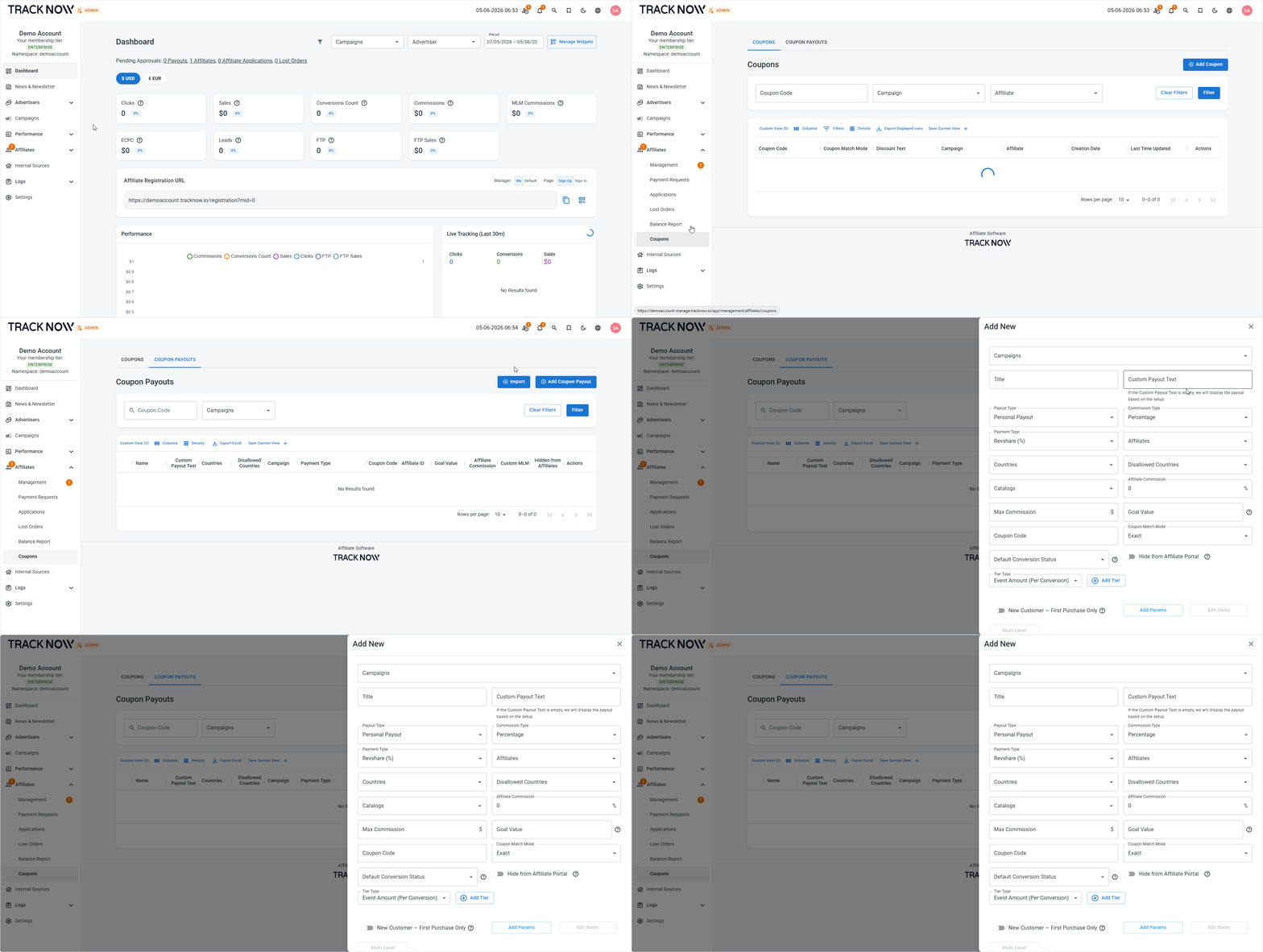
Navigate to Affiliates → Coupons → Coupon Payouts tab → Add Coupon Payout
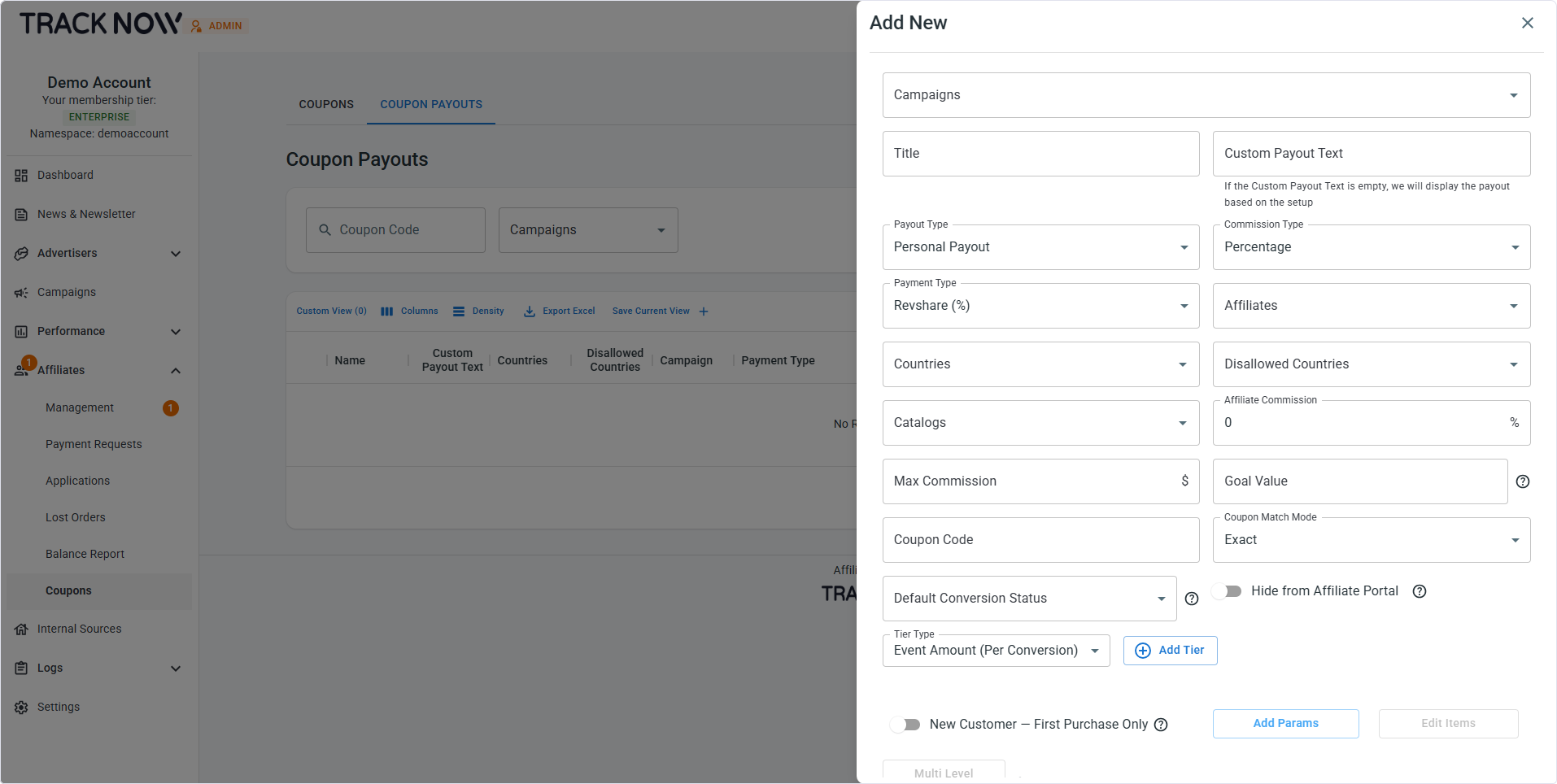
| Field | Description |
|---|---|
| Campaigns (Required) | Select the campaign this coupon payout will be added to |
| Title (Required) | Give the coupon payout a name |
| Custom Payout Text (Optional) | Enter text to show the affiliate instead of this payout's commission rate |
| Payout Type (Required) | Select whether it's a personal payout (a specific affiliate's code) or a general payout (general store coupon) |
| Commission Type (Required) | Select the commission calculation method |
| Payment Type (Required) | Select the event type and whether it's a lifetime type payout |
| Affiliates (Required) | Select the affiliate that this coupon code is associated with |
| Countries (Optional) | Only purchases by clients from the selected countries can trigger this coupon payout |
| Disallowed Countries (Optional) | Only purchases by clients NOT from the selected countries can trigger this coupon payout |
| Catalogs (Optional) | Add a catalog for item-based commission calculation |
| Affiliate Commission (Required) | Set the affiliate commission rate |
| Max Commission (Optional) | Limit the commission amount if it's a percentage based commission rate |
| Goal Value (Optional) | Read about goal-based payouts here |
| Coupon Code (Required) | Ener the coupon code |
| Coupon Match Mode (Required) | Select how our system will compare the incoming coupon code against the coupon value set in this payout |
| Default Conversion Status (Optional) | Select the default status for conversion where this payout was applied. When empty, defaults to the campaign setting |
| Tier Type (Optional) | Add commission tiers to this payout |
| New Customer (Optional) | Toggle on to trigger this payout only when the event postback contains new_customer=true (First purchases) |
Creating a Coupon Code
Navigate to Affiliates → Coupons → Coupons tab → Add Coupon
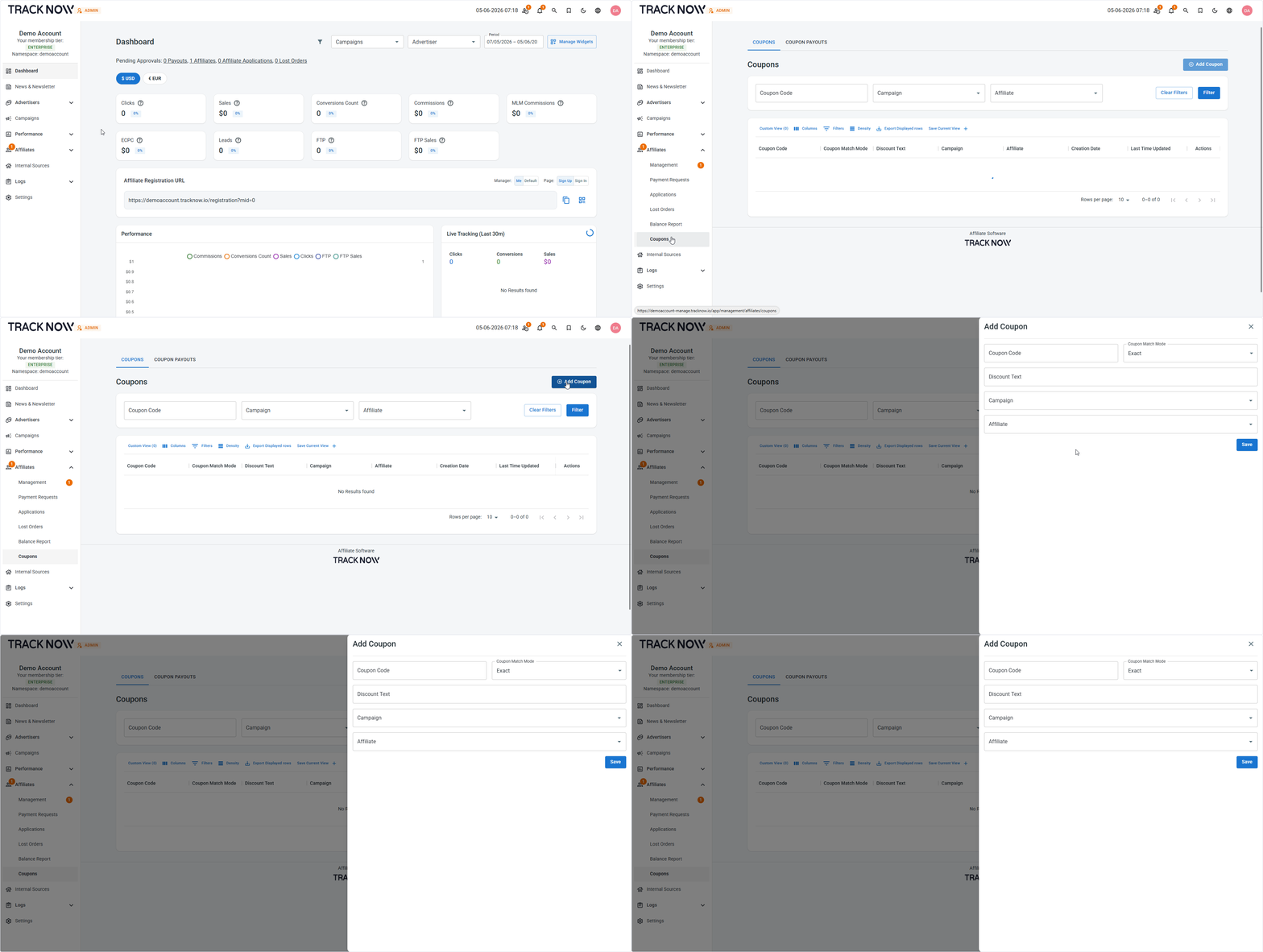
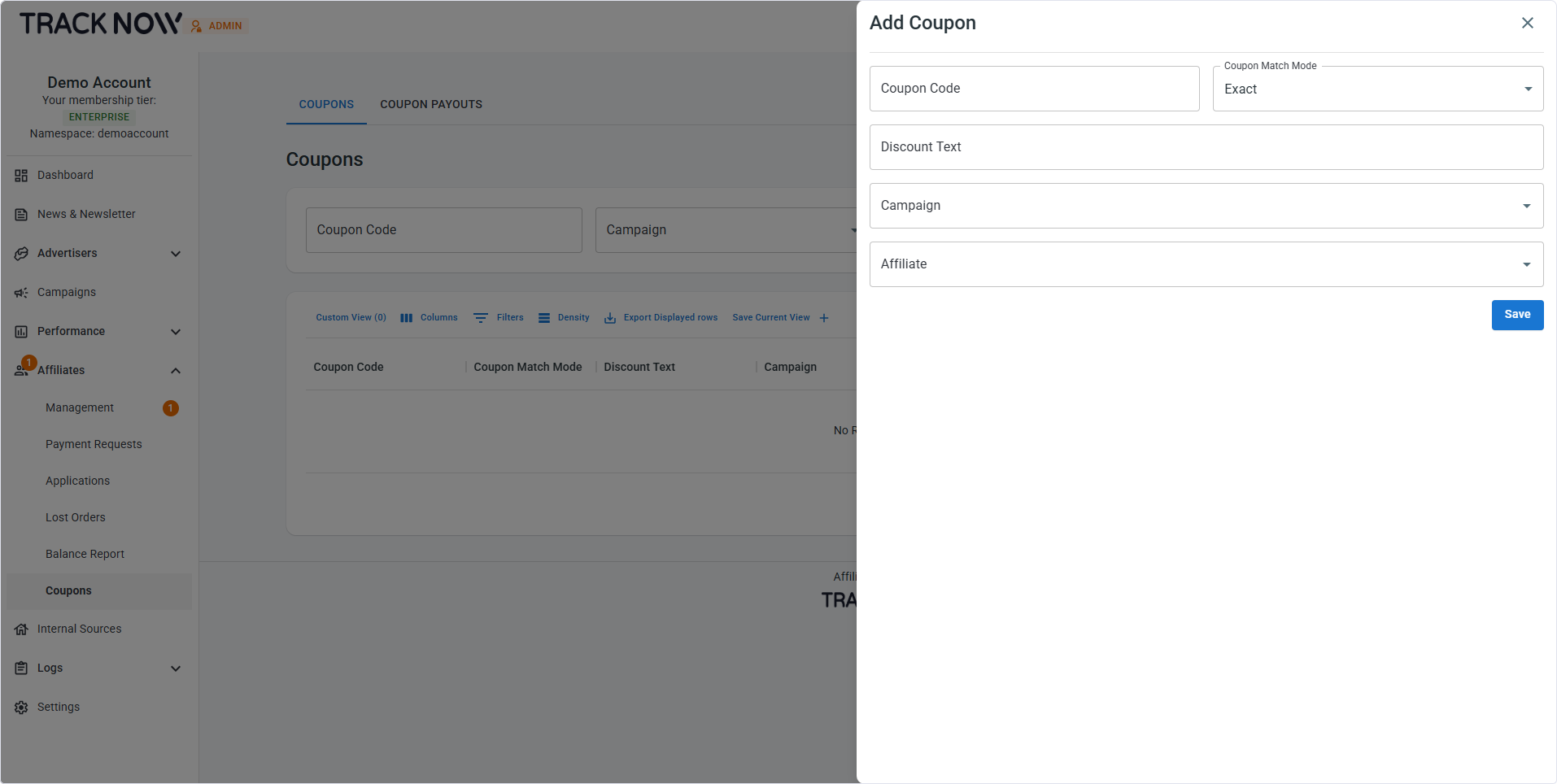
| Field | Description |
|---|---|
| Coupon Code (Required) | Ener the coupon code |
| Coupon Match Mode (Required) | Select how our system will compare the incoming coupon code against the coupon value set in this payout |
| Discount Text (Required) | Enter text to show the affiliate the client discount amount (e.g 15% OFF) |
| Campaign (Required) | Select the campaign this coupon will be added to |
| Affiliates (Required) | Select the affiliate that this coupon code is associated with |
Where Affiliates See Their Coupon Codes
Main Dashboard
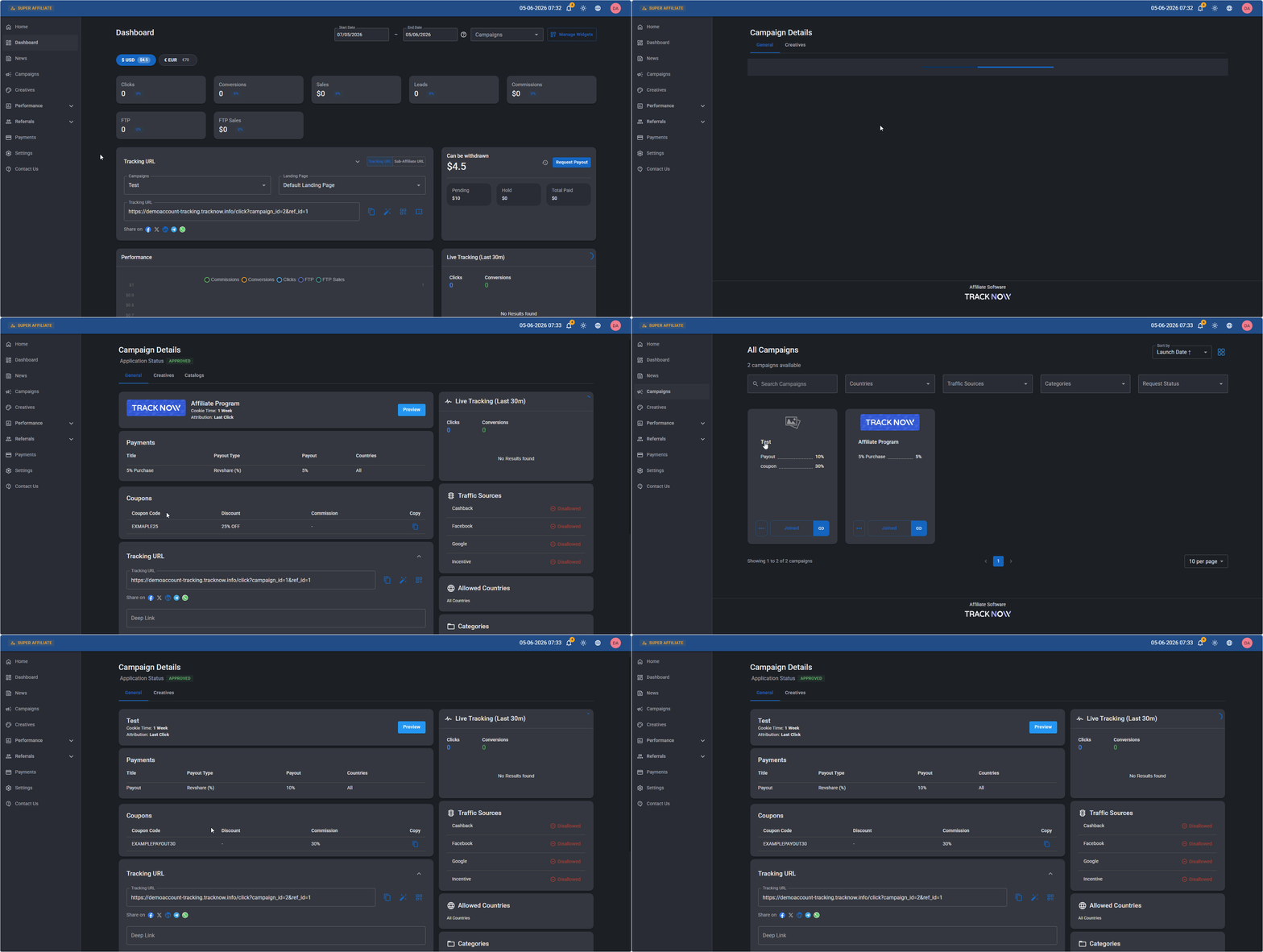
On the affiliate's Dashboard screen, there's a coupon icon in the Tracking URL card
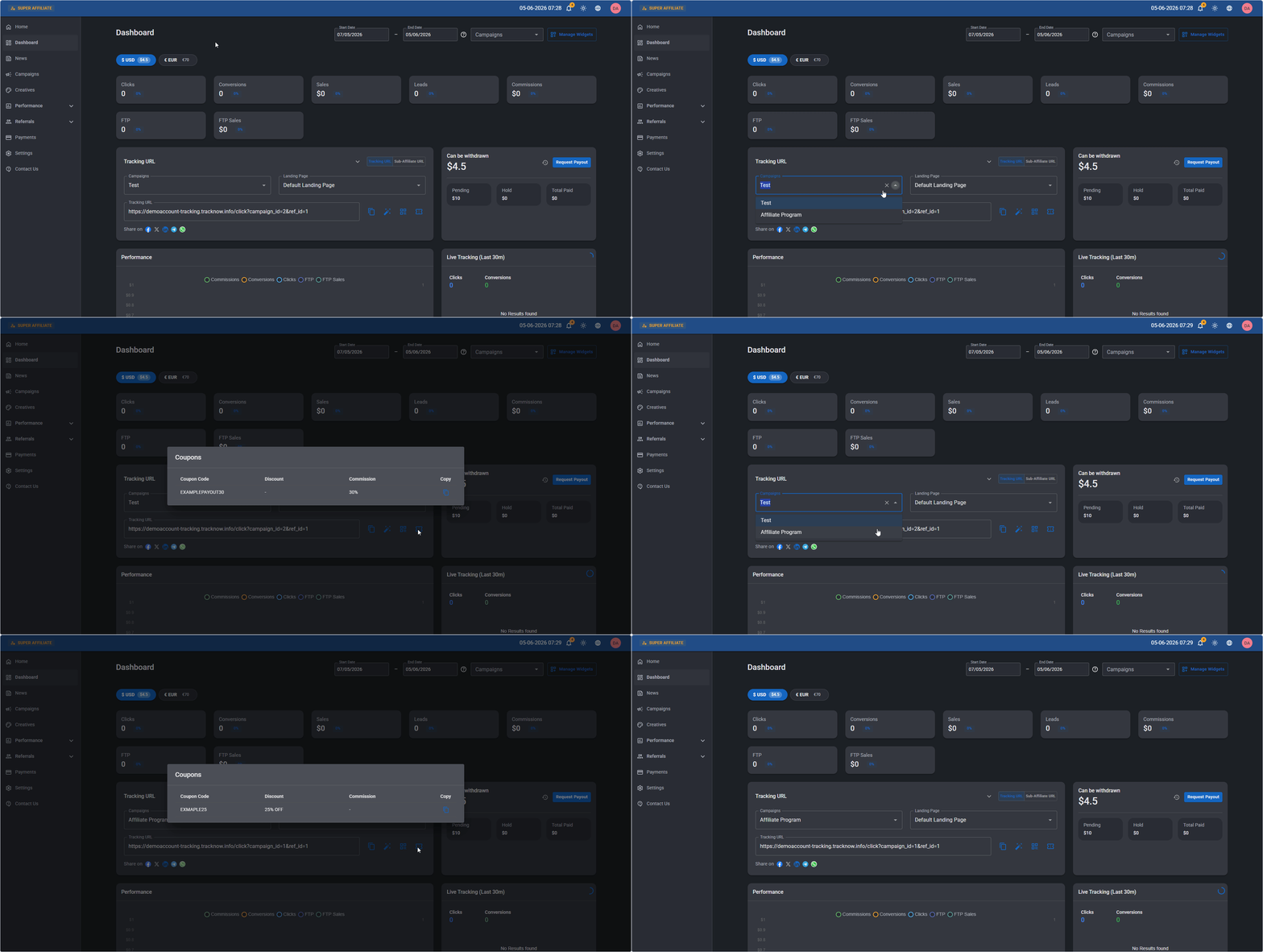
The coupon codes that will appear are determined by the selected campaign
Campaign Page
Affiliates can view the coupon codes associated with each of their campaigns on every campaign page.
Campaigns → Click on the relevant campaign name → The coupons will appear on that campaign's page